
Voice search for WooCommerce: how it works and what to know
A microphone icon in the search box lets shoppers speak instead of type. It helps on phones in particular. It also raises a privacy question that you should answer before you switch it on.
Who it helps
People on phones, people with a long product name or code in mind, people who find typing hard, and shoppers with their hands full. It is an addition for those shoppers. It does not need to replace typing.
How it works
Voice search in a web page uses the browser's own speech recognition. The shopper taps the microphone and allows access when asked. The browser turns speech into text and puts the words in the search box. The search then works as usual.
The privacy point
In common browsers, the audio is sent to the browser maker's speech service to be turned into text. In Chrome that is Google, and in Safari it is Apple. Your store does not receive the audio. Still, say so in your privacy policy, and let yourself switch the microphone off.
What to check
- Does it work in Chrome and Safari on a phone?
- Does the box say what it heard, so the shopper can correct it?
- Does a mistaken hearing still find something? Typo correction helps here.
- Can you turn it off in one setting?
In Lodestar Search
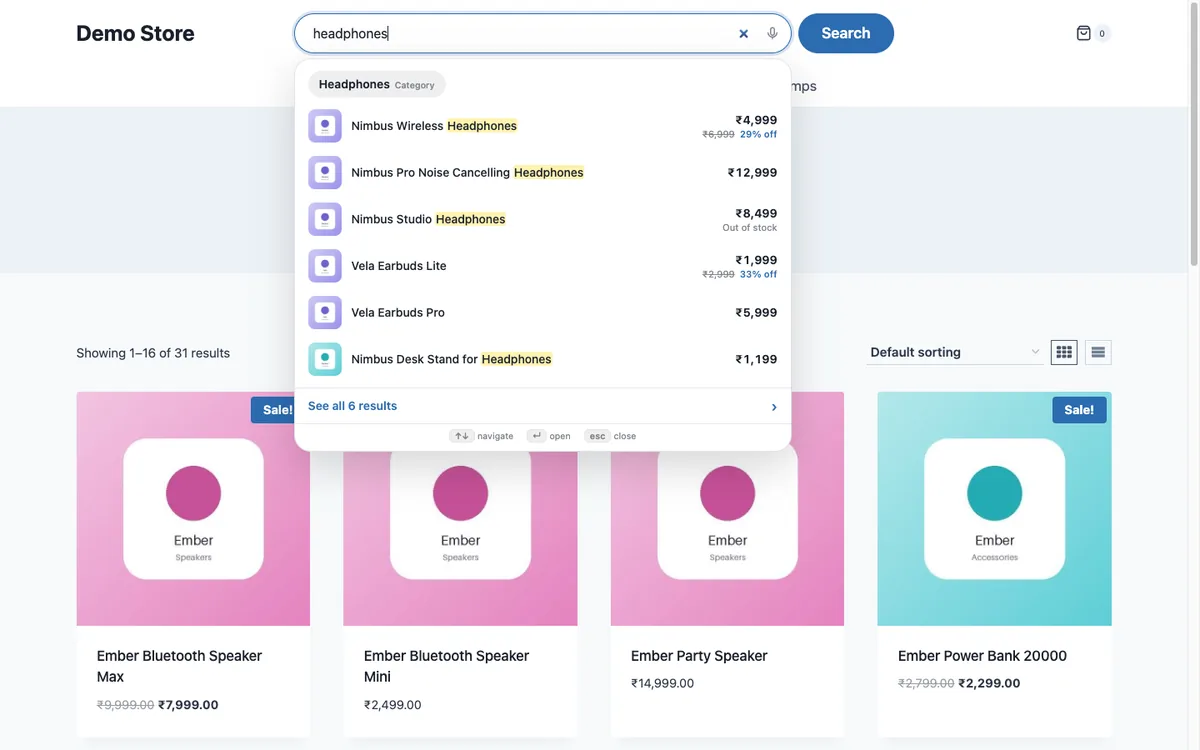
Voice search is optional in Lodestar Search. When it is on, the browser sends the spoken audio to its own speech service, and nothing goes to us. Turn the microphone off under Settings, Lodestar Search. You can see the microphone in the search box below.
Lodestar Search is a free WooCommerce plugin with typo fix, synonyms and instant results.
Get the free plugin
Questions
Does voice search work in every browser?
Support varies by browser and device. Test it on the phones your shoppers use.
Is voice search a privacy risk?
The audio goes to the browser's speech service, not to your store. Mention it in your privacy policy.
Do shoppers actually use it?
Some do, mostly on phones. Measure with your own search analytics.