
How to improve WooCommerce search results
People who use your search box already know what they want. If they find it fast they buy, and if they do not they leave. These seven changes make the biggest difference.
1. Fix typos
Shoppers misspell brand names and model names all the time. The default search returns nothing for "cannon" when you sell Canon. Pick a search that corrects typos and says so, for example "Showing results for Canon".
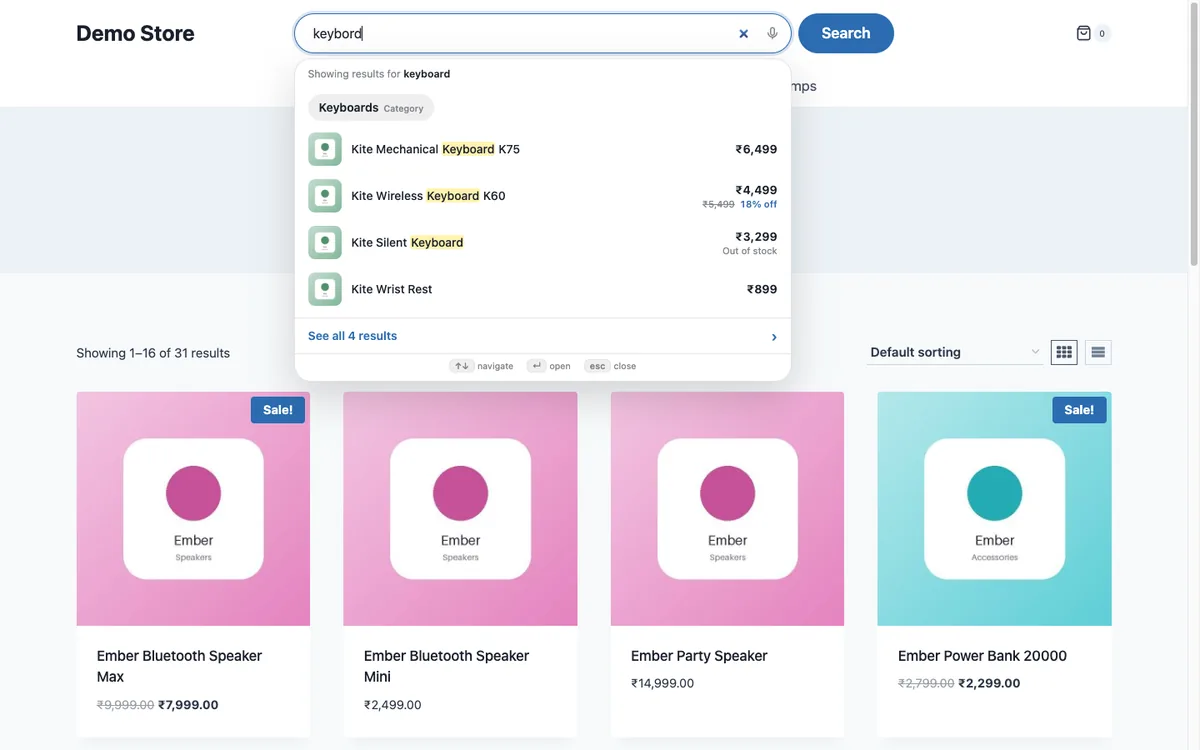
2. Add synonyms
Your catalogue says "sneakers" and your shopper types "trainers". Write down the pairs that matter for your store: tv and television, sofa and couch, mobile and phone. A synonym list is a few minutes of work and it removes whole classes of empty results.
3. Handle model numbers
A shopper types "a7 iv" and the product is "A7IV". Good search ignores spaces and dashes inside model numbers. If you sell electronics, tools, parts or anything with codes, test this with your ten best sellers.
4. Rank by what matters
A product whose name matches should rank above one that mentions the word once in its description. Brand and name matches first, accessories after the product they are made for, best sellers and in stock items higher. Without this, a phone case can outrank the phone.
5. Show results as the shopper types
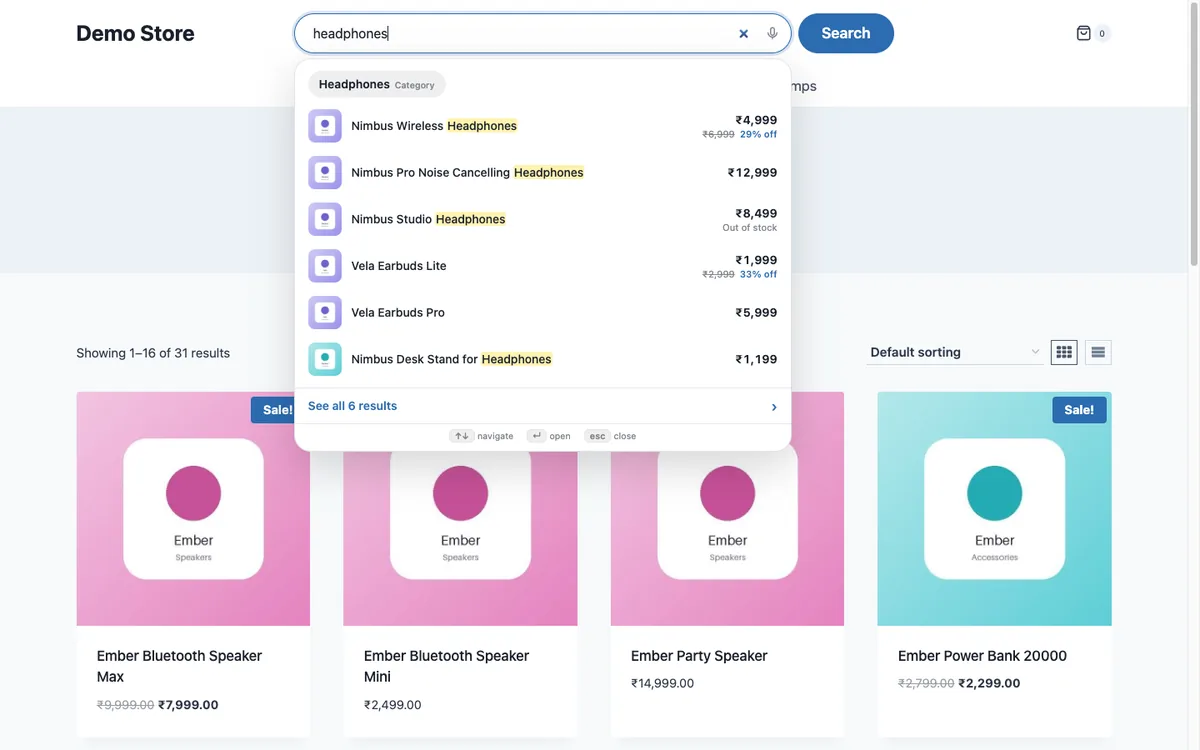
Instant results save a page load and let people see that you have the thing. Show the image, the price, the sale price and the stock status. Keep the list short and make it work with the keyboard.
6. Decide what out of stock products do
Hiding every out of stock product can lose a shopper who would have waited. Showing them first wastes the top spot. A good middle is to show them lower in the list. Make it a choice you set on purpose.
7. Read what people search for
The words shoppers type are free market research. Look at the top searches and at the searches that found nothing. Each empty search is either a missing synonym, a missing product, or a product with a poor title. See how to find and fix zero result searches.
Where Lodestar Search fits
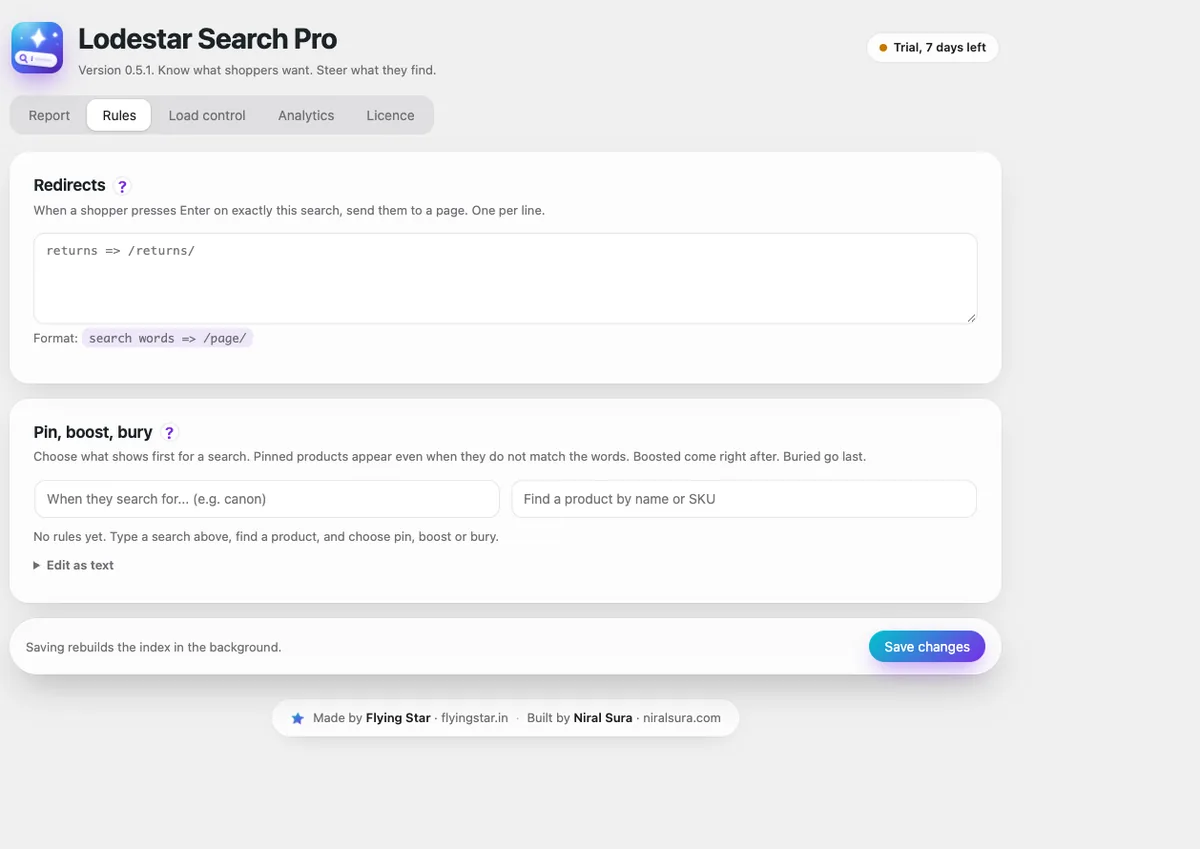
Lodestar Search is a free WooCommerce plugin that covers the first six: typo fix, synonyms, model numbers, ranking, instant results and an out of stock setting. It builds a small search file from your products and searches it in the visitor's browser, so typing does not load your server. Lodestar Pro adds the analytics and the controls in step 7. Get the free plugin.
Lodestar Search is a free WooCommerce plugin with typo fix, synonyms and instant results.
Get the free plugin
Questions
What is the best way to improve WooCommerce search?
Add typo correction, synonyms and model number matching first, then ranking. Those four fix most of the searches that currently fail.
Is the default WooCommerce search good enough?
For a store with a handful of products and simple names, often yes. For larger catalogues, brand names, model numbers or international spellings it usually is not.
Will a better search increase sales?
It removes a reason to leave, so shoppers who search are more likely to reach a product page. The size of the gain depends on your store. Measure your own search to find out.