
WooCommerce search typos and synonyms: what to set up
Two problems cause most empty searches. The shopper misspells the word, or uses a different word than your catalogue. Each has a simple fix.
Why the default search misses
The default search compares the typed letters to your product text. "Hedphones" does not contain "headphones", so nothing matches. "Sofa" does not match a product that says "couch". The software is doing exactly what it was built to do.
Typo correction
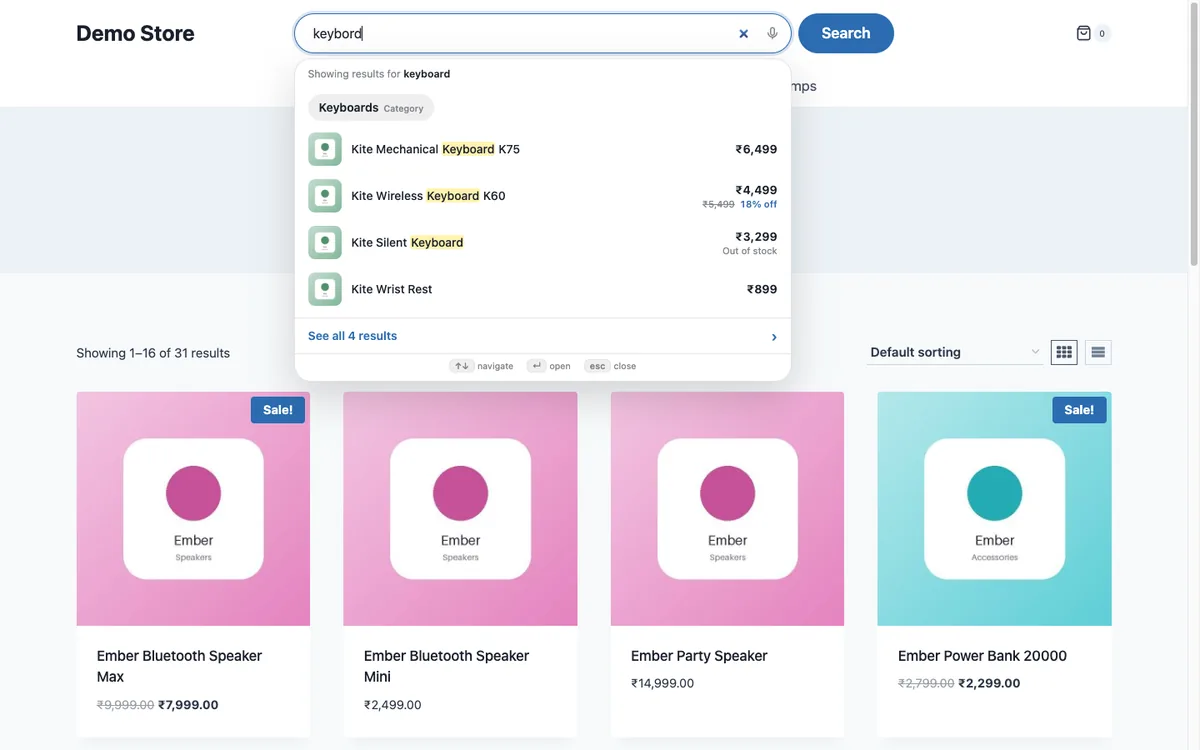
Typo correction compares what was typed with the words in your catalogue and picks the closest one. It should only step in when the search finds nothing, so it does not rewrite searches that work. It should also tell the shopper what it did, so they can trust the result.
Synonyms: how to build the list
Start with your own data. List your ten most common product types and ask what else a customer might call each one. Add regional words if you sell in more than one country: trousers and pants, lift and elevator. Add brand shorthand people use. One group per line works well:
- tv, television
- sofa, couch, settee
- trainers, sneakers
- mobile, phone, smartphone
Review the list every month against the searches that found nothing.

Model numbers and spacing
Product codes cause a third kind of miss. "a7 iv", "a7iv" and "a7-iv" should all find the same camera. Check that your search treats spaces and dashes inside a code as optional.
How to do it with Lodestar Search
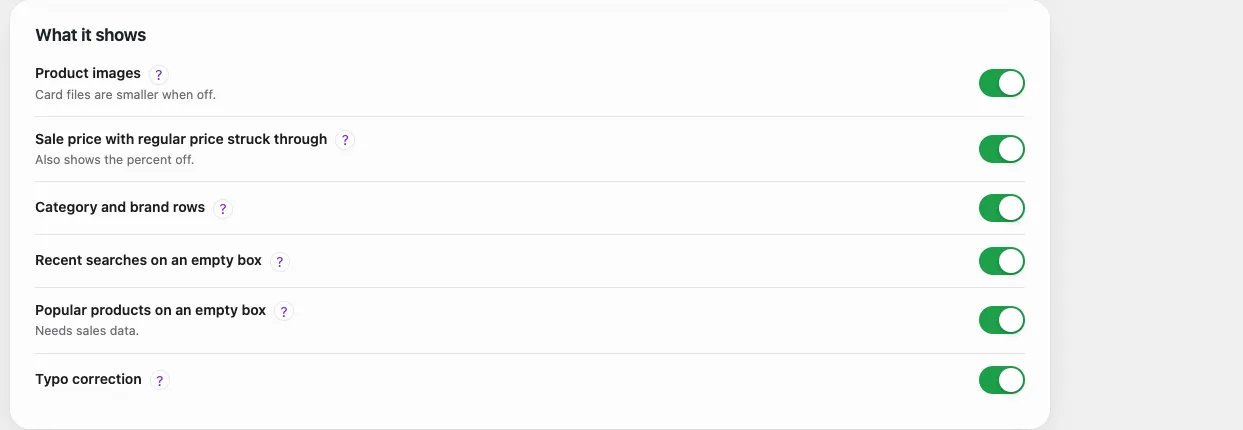
Lodestar Search has typo correction, model number matching and a synonym box built in, in the free plugin. Typo correction runs in the visitor's browser, only when a search finds nothing. Typo correction is one switch under the Dropdown tab. Add synonyms there, one group per line. Get the free plugin.
Lodestar Search is a free WooCommerce plugin with typo fix, synonyms and instant results.
Get the free plugin
Questions
Why does my WooCommerce search not find misspelled words?
The default search matches the letters as typed. It has no typo correction.
What are search synonyms?
Pairs or groups of words that mean the same thing for your shop, such as tv and television, so a search for either finds the same products.
Do synonyms slow down search?
A short list does not. Lodestar applies synonyms inside the same in-browser search, so there is no extra server request.